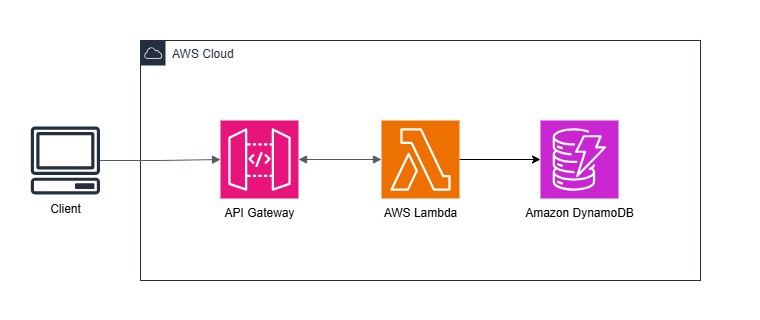
以下のチュートリアルを読んで実際に手を動かしてみた。


IAMポリシーの作成
DynamoDBの操作権限をLambdaに付与するためのポリシーを作成
ポリシー名:lambda-apigateway-policy
IAMロールの作成
上記ポリシーをアタッチするためのロールを作成
ロール名:lambda-apigateway-role
信頼ポリシーでLambdaを指定
Lambda関数の作成
関数名:LambdaFunctionOverHttps
ランタイム:Node.js 22.x
実行ロール:上記で作成したロールを指定
コードの書き換え
以下の通りコードを書き替えてデプロイ
※リージョンに注意
import { DynamoDBDocumentClient, PutCommand, GetCommand,
  UpdateCommand, DeleteCommand} from "@aws-sdk/lib-dynamodb";
import { DynamoDBClient } from "@aws-sdk/client-dynamodb";

const ddbClient = new DynamoDBClient({ region: "ap-northeast-1" });
const ddbDocClient = DynamoDBDocumentClient.from(ddbClient);

// Define the name of the DDB table to perform the CRUD operations on
const tablename = "lambda-apigateway";

/**
* Provide an event that contains the following keys:
*
*   - operation: one of 'create,' 'read,' 'update,' 'delete,' or 'echo'
*   - payload: a JSON object containing the parameters for the table item
*     to perform the operation on
*/
export const handler = async (event, context) => {

const operation = event.operation;

if (operation == 'echo'){
   return(event.payload);
}

else {
 event.payload.TableName = tablename;
 let response;

 switch (operation) {
   case 'create':
        response = await ddbDocClient.send(new PutCommand(event.payload));
        break;
   case 'read':
        response = await ddbDocClient.send(new GetCommand(event.payload));
        break;
   case 'update':
        response = ddbDocClient.send(new UpdateCommand(event.payload));
        break;
   case 'delete':
        response = ddbDocClient.send(new DeleteCommand(event.payload));
        break;
   default:
     response = 'Unknown operation: ${operation}';
   }
 console.log(response);
 return response;
}
};
APIを作成
API Gatewayで以下のAPIを作成
APIタイプ:REST API
API名:DynamoDBOperations
リソースの作成
以下の通りリソースを作成
リソース名:DynamoDBManager

メソッドの作成
メソッドタイプ:POST
統合タイプ:Lambda関数
Lambda関数:リージョンと関数を指定
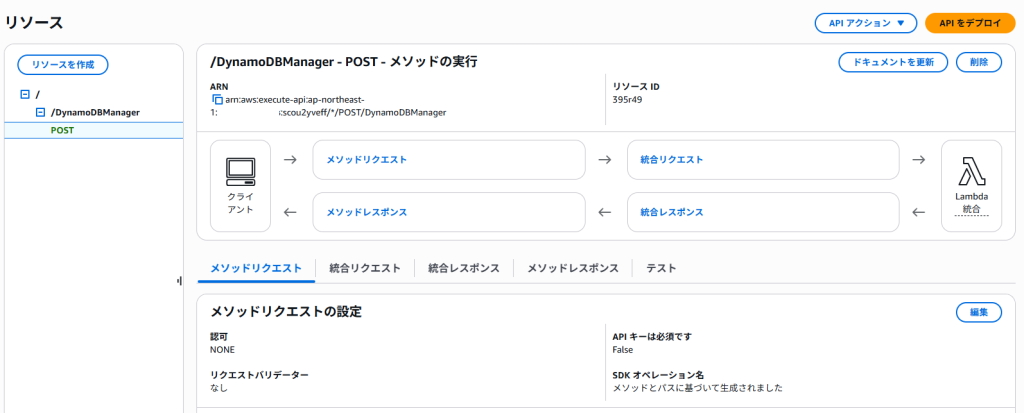
実際のアプリケーションでは、操作ごとに異なる Lambda 関数と HTTP メソッドを使用することがベストプラクティスです。
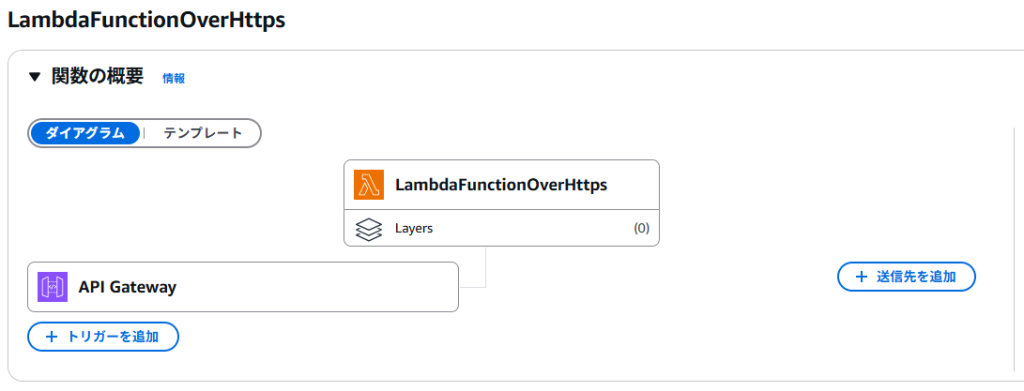
Lambda関数のトリガーとしてAPI Gatewayが設定された。
DynamoDBテーブルの作成
以下の通りテーブルを作成
テーブル名:lambda-apigateway
パーティションキー:id(文字列)
※その他設定は既定

API Gateway、Lambda、DynamoDBの統合テスト
DynamoDB テーブルに新しい項目を追加
API Gatewayで作成したメソッドの「テスト」タブを選択。
リクエスト本文に以下(チュートリアルより抜粋)を貼り付けて「テスト」を実行。
※クエリ文字列とヘッダーは空欄のまま
{
  "operation": "create",
  "payload": {
    "Item": {
      "id": "1234ABCD",
      "number": 5
    }
  }
}
アイテムの探索から、[id] 1234ABCD と [number] 5 が付いた項目が作成されていることを確認。

テーブル項目の更新
引き続き「テスト」タブのリクエスト本文に以下(チュートリアルより抜粋)を貼り付けて「テスト」を実行。
※クエリ文字列とヘッダーは空欄のまま
{
    "operation": "update",
    "payload": {
        "Key": {
            "id": "1234ABCD"
        },
        "UpdateExpression": "SET #num = :newNum",
        "ExpressionAttributeNames": {
            "#num": "number"
        },
        "ExpressionAttributeValues": {
            ":newNum": 10
        }
    }
}
[id] 1234ABCD の [number] が 10 に更新されていることを確認。

APIのデプロイ
以下の通り「DynamoDBOperations」をデプロイ。
ステージ:新しいステージ
ステージ名:test
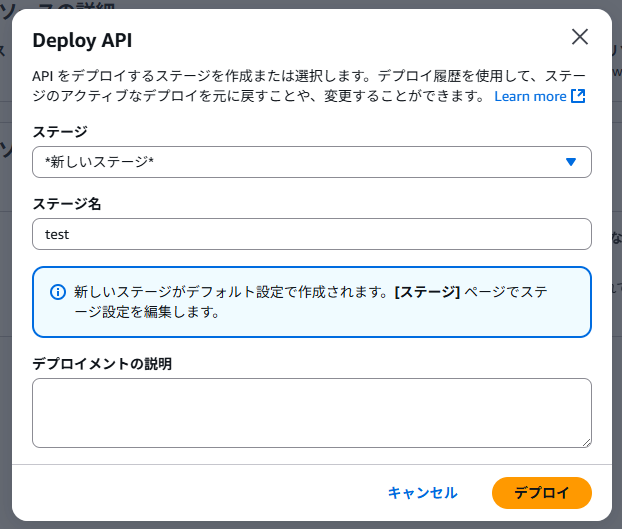
「URLを呼び出す」に記載されているURLをコピーする(次のステップで使用)。
https://XXXXXXXXXX.execute-api.ap-northeast-1.amazonaws.com/testHTTPリクエストを使用して関数を呼び出し
ここではPowershellからHTTPリクエストを発行。
項目の追加
curlコマンドで項目を追加。
-H: リクエストにカスタムヘッダーを追加(ここではコンテンツタイプとしてJSONを指定)-d: リクエストボディでデータを送信(デフォルトHTTP POSTメソッドを使用)
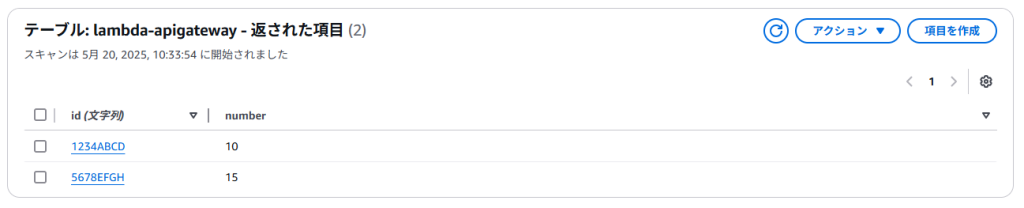
curl.exe 'https://XXXXXXXXXX.execute-api.ap-northeast-1.amazonaws.com/test/DynamoDBManager' -H 'Content-Type: application/json' -d '{\"operation\": \"create\", \"payload\": {\"Item\": {\"id\": \"5678EFGH\", \"number\": 15}}}'ステータスコード200、項目が追加されたことを確認。
項目の読み取り
curl.exe 'https://XXXXXXXXXX.execute-api.ap-northeast-1.amazonaws.com/test/DynamoDBManager' -H 'Content-Type: application/json' -d '{\"operation\": \"read\", \"payload\": {\"Key\": {\"id\": \"5678EFGH\"}}}'項目の更新
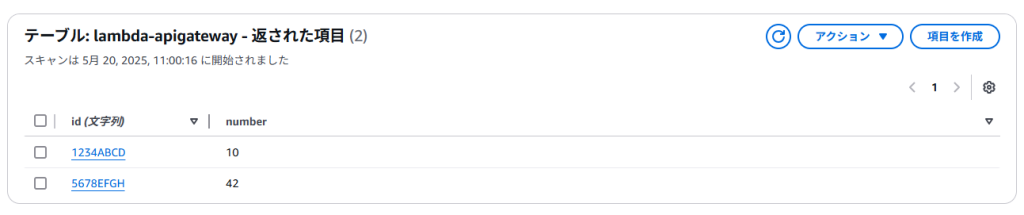
[id] 5678EFGH の [number] を 42 に更新。
curl.exe 'https://XXXXXXXXXX.execute-api.ap-northeast-1.amazonaws.com/test/DynamoDBManager' -H 'Content-Type: application/json' -d '{\"operation\": \"update\", \"payload\": {\"Key\": {\"id\": \"5678EFGH\"}, \"UpdateExpression\": \"SET #num = :new_value\", \"ExpressionAttributeNames\": {\"#num\": \"number\"}, \"ExpressionAttributeValues\": {\":new_value\": 42}}}'更新されていることを確認。
curl.exe 'https://XXXXXXXXXX.execute-api.ap-northeast-1.amazonaws.com/test/DynamoDBManager' -H 'Content-Type: application/json' -d '{\"operation\": \"read\", \"payload\": {\"Key\": {\"id\": \"5678EFGH\"}}}'(DynamoDBの画面でも確認)
項目の削除
[id] 5678EFGH の項目を削除。
curl.exe 'https://XXXXXXXXXX.execute-api.ap-northeast-1.amazonaws.com/test/DynamoDBManager' -H 'Content-Type: application/json' -d '{\"operation\": \"delete\", \"payload\": {\"Key\": {\"id\": \"5678EFGH\"}}}'DynamoDBの画面でも確認。

リソースの削除
作成した各種リソースの削除を忘れずに。